
Ecovacs Deebot Losing Map Data: How to Restore Maps Fast and Prevent Future Loss
Aaron Cooper1. Introduction
You set up your Ecovacs Deebot once, it maps your home beautifully… and then one day, it’s gone. No rooms, no zones—just a blank slate or a weird “ghost map.” Suddenly, your automated cleaning routine turns into babysitting a confused robot.
If that sounds familiar, you’re not alone. Map loss is one of the most frustrating (and common) issues Deebot owners face.
2. Why Your Ecovacs Deebot Keeps Losing Map Data
2.1 Dock Placement and Environment: The Hidden Anchor of Your Map
Here’s the part most people underestimate: your charging dock isn’t just a parking spot—it’s the anchor of your entire map.
Think of it like the robot’s “home coordinates.” Every time your Deebot starts cleaning, it assumes the dock is exactly where the map says it should be. Move it even slightly, and suddenly the robot is trying to navigate a world that no longer lines up.
That’s when things go sideways. You might see rotated maps, duplicated rooms, or worse—a completely new “temporary map” replacing your old one.
In fact, proper setup (flat against a wall with clear space) is considered a critical requirement for accurate mapping and docking. And those mirrors or glossy floors near your dock? They can confuse sensors just enough to throw off positioning.
The result: your robot doesn’t just get lost. It thinks your home changed. So it starts over.
2.2 Interruptions During Cleaning: Moving, Lifting, or Stopping Mid-Run
This is the fastest way to destroy a perfectly good map—and most people don’t even realize they’re doing it.
Picture this: your Deebot gets stuck under a chair, so you pick it up and drop it somewhere else. Seems harmless, right? From the robot’s perspective, it’s chaos.
Deebot relies on something called SLAM (Simultaneous Localization and Mapping)—basically, it constantly tracks where it is based on movement and surroundings. When you lift it mid-run, you’re teleporting it without updating its internal “GPS.”
Interruptions cause similar problems:
- Stopping a cleaning cycle early
- Manually sending it back to the dock
- Powering it off away from the dock
Here’s the kicker: maps are only saved after a full clean → automatic return to dock. No return, no save. So if your robot never completes that loop? The map was never “locked in” to begin with.
2.3 Sensor, Battery, and Navigation Issues That Break Mapping
Sometimes the problem isn’t what you did—it’s what your robot is dealing with. Over time, tiny issues stack up:
- Dust covering sensors
- Hair wrapped around wheels
- Slipping on smooth or wet floors
- Getting stuck on rugs or cables
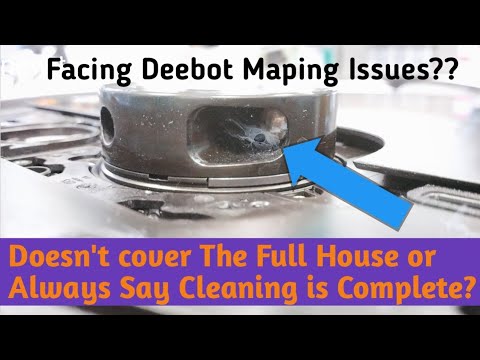
Individually, these seem minor. But together? They quietly sabotage mapping accuracy. Here’s what’s happening behind the scenes: your Deebot estimates distance using both sensors and wheel movement. If the wheels spin but the robot doesn’t move properly (like on a slippery surface), its internal positioning drifts.
That’s when you start seeing:
- Warped or overlapping rooms
- “Ghost” walls
- Maps that don’t match reality
Ecovacs also points out that dirty sensors can directly reduce navigation accuracy, making it harder for the robot to detect obstacles or maintain a consistent path. And then there’s battery. If your robot runs low before finishing and returning to the dock, the mapping cycle may not complete properly. No completion means no reliable map saved.
2.4 Firmware, App Glitches, and Connectivity Problems
Not all map loss is physical—sometimes it’s digital. Your Deebot’s map lives in two places: the robot itself and the app. If something goes wrong in that connection, it can look like your map vanished… even if it’s still technically there.
Common culprits include:
- Outdated firmware
- App bugs or crashes
- Wi-Fi dropouts during cleaning
- Sync failures between robot and app
And firmware updates? They’re more important than most people think. Updates often include navigation improvements and bug fixes that directly address map instability. Ignore them long enough, and you may end up chasing the same issue over and over again.
It’s not always your home. Sometimes, it’s the software trying to keep up.
4. Advanced Scenarios: Persistent Map Loss and Multi-Floor Confusion
4.1 Why Your Deebot Keeps Resetting Maps Every Run
If your Deebot loses its map once, that’s annoying. If it resets every single run? That’s a pattern—and patterns point to something deeper.
At this stage, you’re likely not dealing with simple user error anymore. Instead, it’s usually a combination of unstable conditions: subtle dock misalignment, inconsistent starting points, or software instability that prevents the robot from confidently recognizing where it is.
This is especially common when:
- The environment changes frequently (moving furniture, clutter near the dock)
- The robot starts from different locations instead of the dock
- Firmware bugs or sync issues prevent proper map loading
According to Ecovacs guidance, repeated failures to localize can cause the robot to generate temporary maps instead of loading the saved one—essentially wiping your progress every run.
The fix isn’t one magic button. It’s consistency.
Lock the dock in place. Start every run from the same position. Update firmware. And if resets continue even after a clean remap and stable setup? That’s your signal—it may be time to consider a deeper reset or even contact support.
"At that point, it’s not confusion. It’s failure to remember."
4.2 Fixing Multi-Floor Map Mix-Ups and Wrong Map Loading
Multi-floor homes are where things get really messy—literally and digitally.
You carry your Deebot upstairs, hit “clean,” and suddenly it thinks your bedroom is your kitchen. Rooms overlap. Zones make no sense. It’s not broken—it’s using the wrong map.
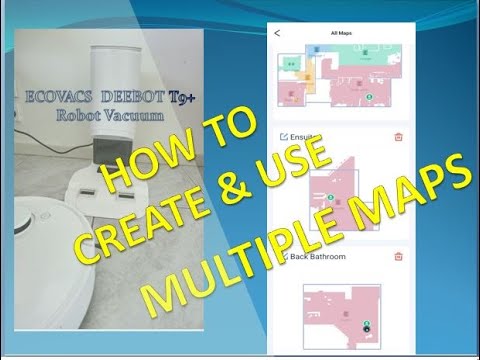
Here’s the catch: Deebot can store multiple maps, but it still needs to know which one to use. And that decision isn’t always perfect.
Industry guidance—and Ecovacs’ own tutorials—recommend creating a separate, clearly labeled map for each floor and enabling multi-floor mapping in the app. Without that, the robot may overwrite maps or load the wrong one entirely, especially if you start cleaning without selecting a floor.
Also pay attention to where you place the robot. Starting in a tight corner, near stairs, or in a cluttered area makes it harder for the robot to orient itself. A clean, open starting point dramatically improves map recognition.
If maps are already mixed up or overwritten? There’s no shortcut—you’ll need to rebuild them, one floor at a time, with clear labels.
4.3 When Map Data Is Permanently Lost (and What You Can Still Do)
Here’s the hard truth most guides don’t say clearly: Sometimes, your map is gone. For good.
If a map was never fully saved (for example, interrupted during the first run), or if it was deleted, reset, or overwritten, there is no supported way to recover it. Even the “Restore Map” feature can only roll back to a previously saved version—it can’t resurrect something that was never stored.
That’s why situations like:
- Interrupting the very first mapping run
- Factory resetting the robot
- Deleting maps manually
…all lead to permanent loss.
But here’s how to bounce back fast without losing your sanity:
- Rebuild Smarter: Use a full uninterrupted run from the dock so the map actually saves. That “start → clean → auto-return” loop is non-negotiable.
- Recreate Structure: Focus on Room divisions, No-go zones, and Cleaning order.
- Match Names: Reuse your old room names for easier smart home automation reconnection.
Finally, treat your new map like something fragile—because it is. Once it’s stable, consider using any available backup features in the app to protect it.
5. How to Prevent Deebot Map Loss in the Future

5.1 Get Dock Placement Right (and Never Move It Again)
If there’s one rule that solves half of all mapping problems, it’s this: Your dock should never move.
Why? Because your Deebot builds its entire understanding of your home around that single point. It’s the origin of its internal coordinate system. Shift it, and everything else stops lining up.
Ecovacs recommends placing the dock flat against a wall, with open space around it and minimal interference. In fact, proper placement—including clearance and avoiding reflective surfaces—is considered essential for reliable navigation and map stability.
Ideal Dock Placement
- Flat against a straight wall
- Maintain clear space around it
- Stable, permanent location
Avoid These Spots
- Near mirrors or shiny surfaces
- Tight corners or angled positions
- High-traffic areas where dock might be bumped
5.2 Let Every Cleaning Cycle Finish Without Interruption
This is where most people accidentally sabotage their own maps. Your Deebot only saves its map after completing a full cycle—starting from the dock and returning automatically.
Think of it like saving a document. If you close it without hitting “save,” it’s gone. Let it finish. Even if it’s slow. Even if it’s not perfect. A complete run builds a stable foundation.
5.3 Regular Maintenance: Clean Sensors, Wheels, and Brushes
Over time, your Deebot quietly collects dust on its sensors and hair wrapped around wheels. This isn’t random—it’s physics. Your robot depends on accurate sensor data and precise movement tracking.
The fix? Simple, but consistent:
- Wipe sensors with a clean, dry cloth
- Remove hair from wheels and brushes
- Keep moving parts clear of debris
According to Ecovacs recommendations, this kind of maintenance is essential to prevent navigation errors that lead to mapping failures. Clean sensors = accurate positioning. Accurate positioning = stable maps.
5.4 Keep Firmware Updated and Use Map Backup Features
If your robot’s hardware is the body, firmware is the brain. Ecovacs regularly releases updates that refine navigation algorithms and fix bugs.
Ignore those updates, and you may face:
- Maps not loading
- Random resets
- Failed localization
Updating firmware is one of the easiest ways to eliminate those invisible problems. Just as important? Backups. Some Deebot models support map backup through the app. If yours does, use it. It’s the closest thing you have to insurance against map loss.
6. Conclusion
Losing your Deebot’s map feels like a glitch—but it’s usually the result of a few predictable patterns: moved docks, interrupted runs, dirty sensors, or outdated software.
The good news? Once you understand how mapping actually works, the fix becomes straightforward.
Start with the recovery hierarchy:
Restore the map → re-anchor at the dock → remap if needed.
Then lock in the habits that keep your map stable:
Keep the dock fixed. Let cleaning cycles finish. Maintain sensors. Stay updated.
Do that, and your robot stops feeling unpredictable—and starts feeling reliable again. No more ghost maps. No more resets. Just press clean… and let it handle the rest.
FAQ
Q: Why did my Ecovacs Deebot map suddenly disappear?
A: Map loss is typically caused by moving the charging dock, interrupting the robot during its cleaning cycle, or dirty sensors. If the robot cannot localize its home coordinates upon startup, it may abandon the saved map and generate a temporary one to avoid navigation errors.
Q: Can I recover a deleted or overwritten Deebot map?
A: Permanent map loss occurs if a factory reset is performed or if a new map is saved over an old one. You can attempt to use the 'Restore Map' feature in the app, but this only works if a valid backup was previously created and stored.
Q: How do I prevent my Deebot from losing its map in the future?
A: Ensure the charging dock is placed against a flat wall in a permanent location. Always allow the robot to complete its cleaning cycle and return to the dock automatically, as this 'locks in' the map data. Regularly cleaning the sensors also maintains localization accuracy.
Q: Does moving the robot manually cause map issues?
A: Yes, manually picking up and moving the robot mid-clean disrupts its SLAM (Simultaneous Localization and Mapping) process. When the robot is 'teleported' without sensor feedback, it loses its position on the internal coordinate system, often leading to a map reset or ghost rooms.
Q: Why does my Deebot create a second, tilted map?
A: Tilted or overlapping maps usually result from wheel slippage on slick floors or environmental changes near the dock. If the robot's physical movement doesn't match its sensor data, the software attempts to compensate by skewing the map to fit the perceived surroundings.