
Segway Navimow Not Finding Satellite Signal: Top 5 Diagnostic Steps to Fix GPS Issues Fast
Aaron Cooper1. Introduction: Why Your Navimow Can’t Find Satellites (And Why It’s Usually Fixable)
Few things are more frustrating than setting up your Segway Navimow, ready to enjoy a hands-free lawn… only to see “No satellite signal” staring back at you. No mowing. No mapping. Just a very expensive lawn ornament.
Navimow doesn’t rely on boundary wires—it uses GNSS (satellite positioning) combined with RTK, a system that compares signals between your mower and its antenna to achieve pinpoint accuracy. That means when something goes wrong, it’s usually tied to setup, placement, or signal conditions—not a broken machine.
In this guide, we’ll walk through the 5-step diagnostic process that actually fixes the problem—starting with the basics most people overlook.
2. Step 1–2: Start with the Basics—System Status, Firmware, and Cable Connections
2.1 Check Firmware, App Status, and Activation First
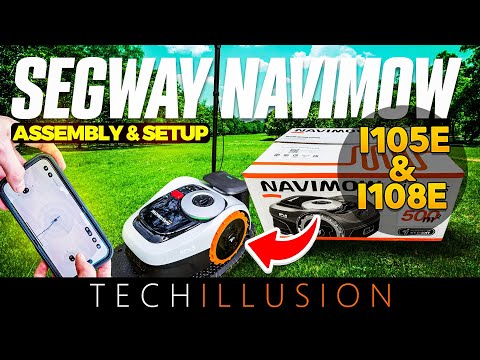
Before you start moving antennas around your yard, pause for a second—because sometimes the issue isn’t the sky. It’s the software.
A surprisingly common scenario: the mower shows “no GPS,” but the real problem is incomplete setup or outdated firmware. Navimow requires proper activation and a working app connection before it can even begin interpreting satellite data correctly. Initial setup also needs a network connection (Wi-Fi or cellular), but here’s the twist—network signal and satellite signal are completely different things. Strong Wi-Fi won’t fix poor GNSS.
If you’re seeing warnings or codes like 6010 or 7006, don’t ignore them. These are often tied to positioning issues, not random glitches.
It sounds basic. But skipping this step is like troubleshooting Wi-Fi when the router isn’t even plugged in.
2.2 Inspect GNSS Antenna Cable and Power Connection
Now let’s talk about the silent deal-breaker: the antenna connection.
If your Navimow shows absolutely zero satellites—not weak signal, but none at all—this is your prime suspect.
The GNSS antenna is the mower’s only “eye” to the sky. If the cable isn’t properly connected, it doesn’t matter how perfect your yard setup is. You’ll get nothing.
- Check that the antenna cable is firmly plugged into the correct port on the charging station.
- Unplug and reseat the connector to ensure it’s fully secure.
- If using an extension cable, remove it temporarily to rule out signal loss.
- Inspect the cable for sharp bends, crushed sections, or exposed wiring.
- Verify the antenna LED indicator is lit (no light often means no power).
If after all this, your app still shows zero satellites in the analyzer, you’re no longer dealing with placement or environment. You’re likely looking at a cable, port, or antenna hardware issue.
3. Step 3: Antenna Placement Is Everything (The #1 Cause of Signal Loss)
3.1 The ‘Open Sky Rule’: What Your Antenna Really Needs
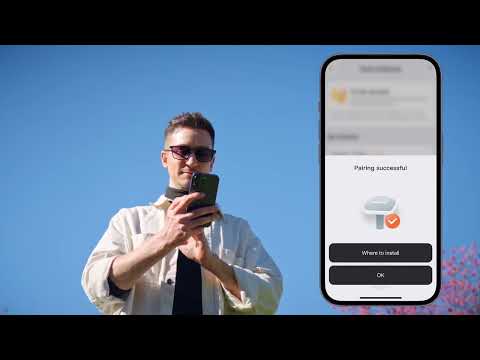
Here’s the truth most new users underestimate: Navimow doesn’t just “like” open sky—it depends on it.
Your mower needs signals from multiple satellites at the same time to function properly. In fact, stable operation typically requires at least 10 satellites visible simultaneously, not just a couple peeking through tree branches.
Think of it like trying to have a conversation through a roof. If your antenna is tucked under eaves, next to a wall, or surrounded by trees, it’s essentially “listening” through obstacles. The result? Weak, inconsistent, or completely missing signal.
That’s why symptoms like drifting outside boundaries or random stops often trace back to poor antenna visibility—not software bugs.
3.2 Best Placement Practices: Height, Distance, and Roof Mounting
So what does “good placement” actually look like in the real world?
| Factor | Requirement / Recommendation |
|---|---|
| Wall Distance | At least 2 meters away from walls or fences |
| Mounting Height | Around 1.5 meters or higher |
| Complex Yards | Roof or Gable mounting is highly recommended |
Moving the antenna up to a roof or gable isn’t overkill—it’s often the difference between constant signal errors and flawless mowing. From an elevated position, the antenna can “see” a much wider portion of the sky, increasing both satellite count and stability.
3.3 Use the Satellite Signal Analyzer to Find the Perfect Spot
Guessing antenna placement is a mistake. Navimow literally gives you a built-in tool to avoid that: the Satellite Signal Analyzer.
- Set up your antenna temporarily in different locations around your yard.
- Open the analyzer in the app to monitor real-time satellite count and signal strength.
- Move the antenna a few feet and check for improvements.
- Try an elevated spot and compare the readings.
This process might feel tedious—but it’s far faster than dealing with constant mowing interruptions later. Some models also offer a thermogram-style visualization; use it as a heatmap of where your mower will actually work.
Once you find a spot with stable, strong readings, lock it in. Secure the cable. Finalize the install. Because when it comes to Navimow performance, placement isn’t just important. It’s everything.
4. Step 4: Understand Environmental Interference and ‘Same Sky’ Limitations
4.1 Why Trees, Walls, and Buildings Break RTK Accuracy
Here’s where things get subtle—and where a lot of “it should work” setups quietly fail.
Navimow doesn’t just need satellites. It needs the same satellites visible to both the mower and the antenna at the same time. This is what’s often called the “same sky” requirement, and it’s the backbone of RTK accuracy.
That’s when things fall apart.
You might notice the mower drifting slightly outside boundaries, pausing mid-job, or throwing location errors like 6010 or 7006. Not because the signal is gone—but because it’s inconsistent between the two points.
This is why sharing at least 10 common satellites between mower and antenna isn’t just a technical detail—it’s the difference between laser-precise mowing and unpredictable behavior.
If your lawn has “hidden zones” (behind sheds, along walls, under heavy canopy), those are your danger areas. RTK doesn’t like blind spots. And unfortunately, your mower can’t guess where it is when that happens.
4.2 Hidden Interference Sources: Power Lines, Metal, and Electronics
Let’s say your antenna placement looks perfect. Open sky. Good height. No obvious obstacles.
And yet… the signal still drops.
This is where hidden interference creeps in—and it’s often overlooked.
GNSS signals are incredibly weak by the time they reach your yard. That means even everyday objects can mess with them. Large metal surfaces (like fences, sheds, or roofs) can reflect signals, creating what’s known as “multipath”—basically confusing echoes that distort positioning.
Then there are less obvious culprits: power lines overhead, nearby electronics, Wi-Fi equipment, or even outdoor lighting systems. These don’t block the signal outright—they degrade it just enough to cause instability.
Another trick? Temporarily relocate your antenna to a completely different part of the yard—somewhere as open and isolated as possible. If the signal suddenly stabilizes, you’ve just confirmed the issue isn’t the mower—it’s the environment.
Annoying? Yes. Fixable? Absolutely.
5. Step 5: Re-Mapping, Testing, and Knowing When It’s a Hardware Problem
5.1 Why You Must Re-Map After Moving the Antenna or Dock
Here’s a mistake that trips up even careful users: you fix the signal… but the mower still behaves strangely.
Why? Because Navimow’s entire coordinate system is anchored to where the antenna was when you created the map.
Move the antenna—even a few feet—and that reference shifts. The mower is now navigating using outdated coordinates. It’s like trying to follow a GPS route after someone moved all the roads.
The result? Boundaries don’t line up. The mower hesitates. Or worse, it refuses to start.
Yes, it takes a bit of time. But skipping this step guarantees inconsistent behavior.
Think of it this way: placement fixes the signal. Re-mapping aligns reality with what your mower “thinks” the world looks like.
Do both—and everything finally clicks.
5.2 Test Mowing Behavior and Watch for Warning Signs
Once everything is set up again, don’t just assume it’s fixed. Watch it work.
A healthy Navimow behaves almost… boringly consistent. It tracks straight lines, respects boundaries, and moves with confidence.
But when GNSS is still unstable, the signs are easy to spot:
- It pauses randomly or hesitates before moving
- It drifts slightly outside virtual boundaries
- It frequently throws location-related errors like 6010 or 7006
- It struggles more in specific zones of your yard
These aren’t random glitches—they’re signals (literally) that positioning isn’t stable yet.
A good test? Let it run a full mowing cycle and observe different parts of your lawn. Pay special attention to previously problematic areas—near trees, walls, or narrow passages.
If it performs consistently across the entire yard, you’re done.
If issues only happen in certain spots, you’re still dealing with environmental limitations—not a broken mower.
5.3 When to Contact Segway Support (And What to Prepare)
At some point, you’ve done everything right… and the signal is still missing.
This is where you stop troubleshooting and start escalating.
Clear signs you may be dealing with hardware failure include:
- The app shows zero satellites even in wide open sky
- The Satellite Signal Analyzer never detects GPS
- The antenna LED doesn’t light up (if your model has one)
- Signal doesn’t improve after checking cables, placement, and relocation
At this stage, the likely culprits narrow down to the antenna, cable, or internal hardware.
Before contacting support, prepare a few key details to speed things up:
| Requirement | Details to Prepare |
|---|---|
| Device Info | Your Navimow model and serial number |
| Diagnostics | Screenshots of the Satellite Signal Analyzer |
| Visuals | Photos of your antenna and charging station setup |
| History | Notes on what you’ve already tested (placement, cables, relocation) |
This isn’t just busywork—it helps support quickly determine whether you need a replacement part or a deeper repair.
And here’s the honest takeaway: true hardware failures are rare. But when they happen, no amount of repositioning will fix them.
6. Conclusion: A Simple Checklist to Get Your Navimow Back on Track
If your Navimow isn’t finding satellites, it’s tempting to assume the worst. But in reality, most issues come down to setup—not defects.
Start simple: confirm firmware, power, and cable connections. Then focus on what matters most—antenna placement and clear sky visibility. From there, check environmental factors like obstacles or interference, and always re-map if you move anything.
Finally, test real mowing behavior. That’s where the truth shows up.
If there’s one takeaway, it’s this: don’t guess—diagnose step by step.
Because once everything is dialed in, Navimow doesn’t just work.
It quietly gives you your weekends back.
FAQ
Q: Why does my Segway Navimow show error 6010 or 7006?
A: These errors typically indicate positioning issues where the mower cannot acquire a stable RTK signal. This is often caused by physical obstructions like tall buildings or trees blocking the line of sight between the mower, the GNSS antenna, and the satellites.
Q: How many satellites does the Navimow need to operate?
A: For stable and precise operation, the Navimow system generally requires both the mower and the antenna to see at least 10 satellites simultaneously. This ensures the RTK system can calculate the mower's position with centimeter-level accuracy.
Q: Do I need to re-map my lawn if I move the GNSS antenna?
A: Yes, you must recreate your map. The entire virtual boundary system is anchored to the antenna's specific location at the time of mapping. Moving the antenna shifts the mower's reference coordinates, which will lead to boundary errors and navigation failure.
Q: Can I install the Navimow antenna near a wall or under a roof?
A: It is not recommended. The antenna requires an 'open sky' view to receive weak satellite signals. Placing it near walls or under eaves creates signal reflections and blockages, which significantly degrades the positioning stability and mowing reliability.
Q: What should I do if the app shows zero satellites?
A: First, check the physical cable connection between the antenna and the charging station. Ensure the connector is fully seated and the cable is not damaged. If the system still shows zero satellites in an open area, it may indicate a hardware fault.